

Recommended for every member
Member Beach App
Fast access to guided breathwork, calm breathing, the cold-dip countdown, safety information, dips, waivers, reminders, and photos.
Open Member App to add itPhone apps
Members should add the Member Beach App. It puts guided breathwork, timers, dips, waivers, and reminders behind one easy home-screen icon.
Russ: add Club Operations and Beach Check-In separately. Add the Member Beach App too if you want the breathwork and timers. Your new icons are not App Store downloads.
Choose the icon you want to add. Open its address in Safari or Chrome before adding it.
No App Store download. Add this website directly from your browser.
Open the app’s address below in Safari. Sign in if asked, and stay on that app’s page.
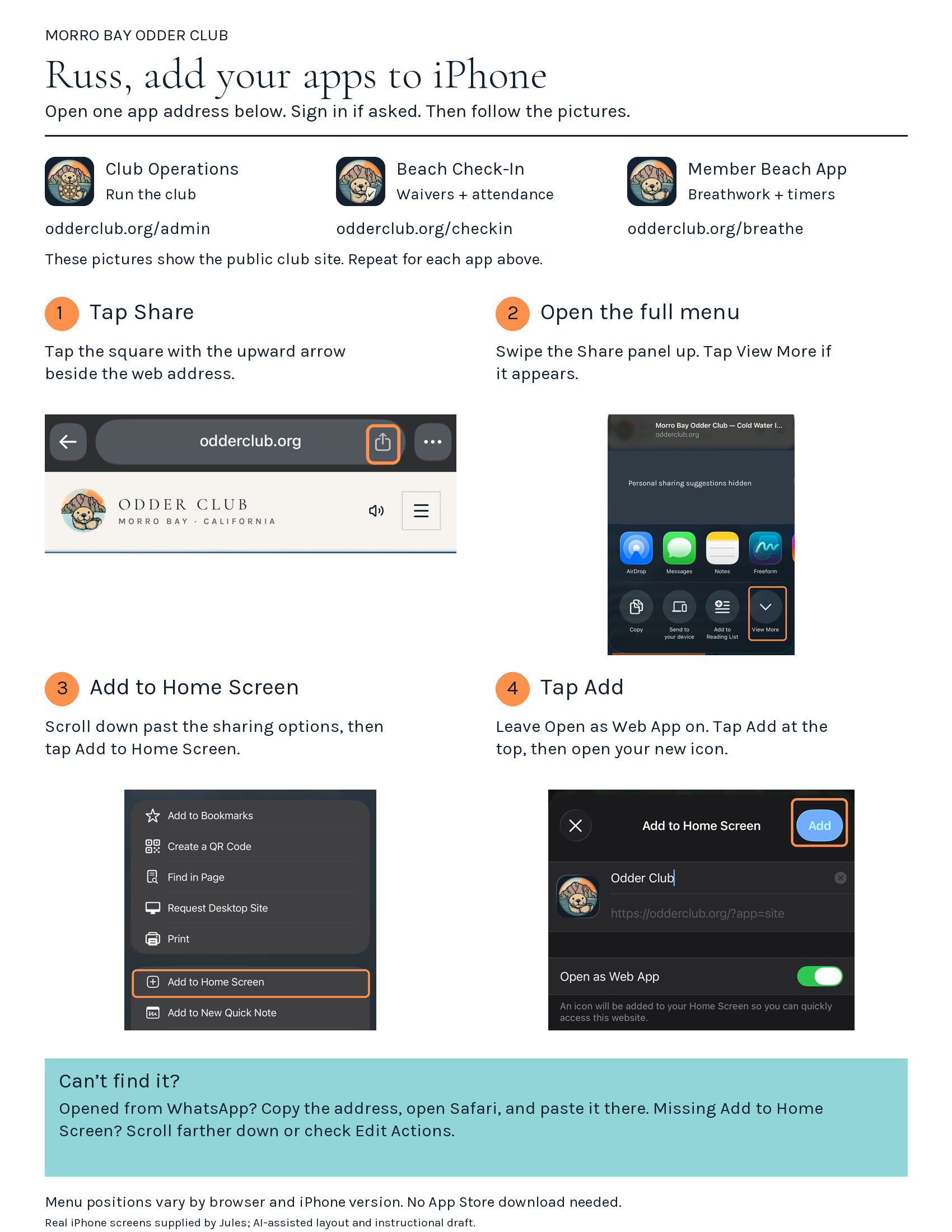
Look for the square with an upward arrow. If it is hidden, tap Safari’s More button (…) to find Share.
Pull the Share menu upward to expand it, then scroll down past the row of app icons. Tap Add to Home Screen. If missing, check Edit Actions.
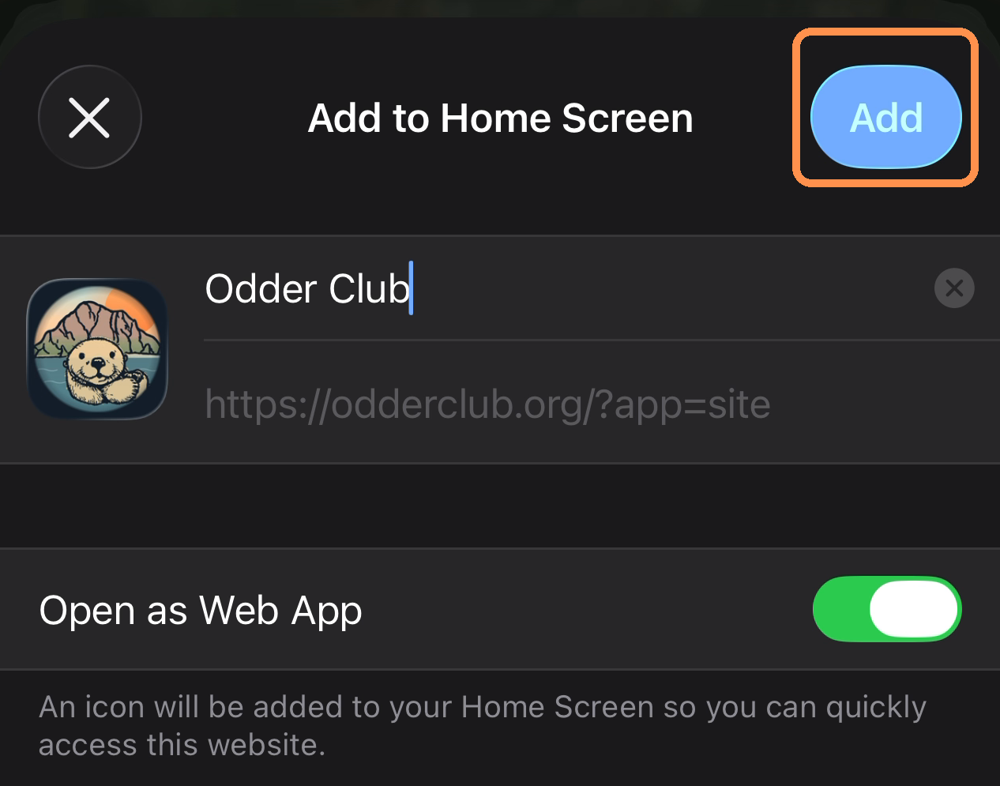
If Open as Web App appears, leave it on. Tap Add at the top, then find the Odder Member icon on your Home Screen.
Address to open
https://odderclub.org/breatheOpened from WhatsApp, Instagram, or email? Use its menu to open in Safari or Chrome. If that option is missing, copy the address and open the browser yourself.
On iPhone, Add to Home Screen is farther down the Share menu, not in the row of app icons. Scroll within that menu. If your phone is managed by an employer or school, installation may be restricted.
Already added it? Close this guide and look for the app icon on your Home Screen. You may need to sign in once inside each separate app.
Wrong icon or an old launch screen? Remove only that Home Screen icon, then add the correct app again. This does not delete your club account. Keep your sign-in details handy.
Adding an icon does not make every page work without internet. Save the breathwork recording separately before going to the beach.
Menu placement varies by iPhone and browser version.
These pictures show the public club site. Start at your chosen app’s address above and use the same steps. Menu positions vary by browser and iPhone version.
Tap the square with an upward arrow beside the web address.
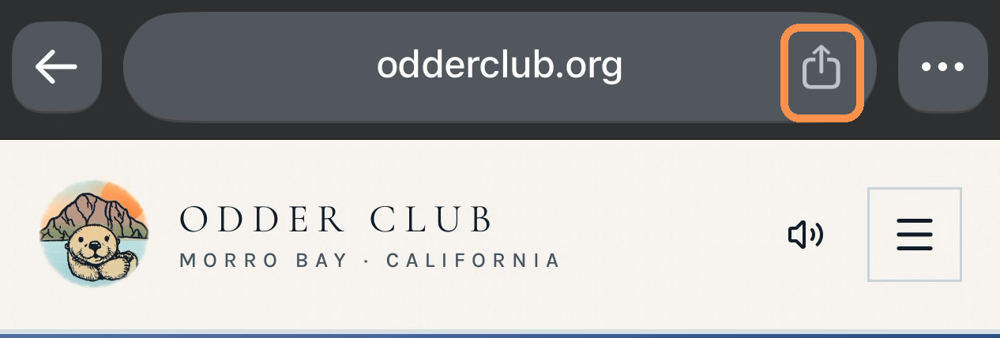
Swipe the Share panel up. Tap View More if it appears.
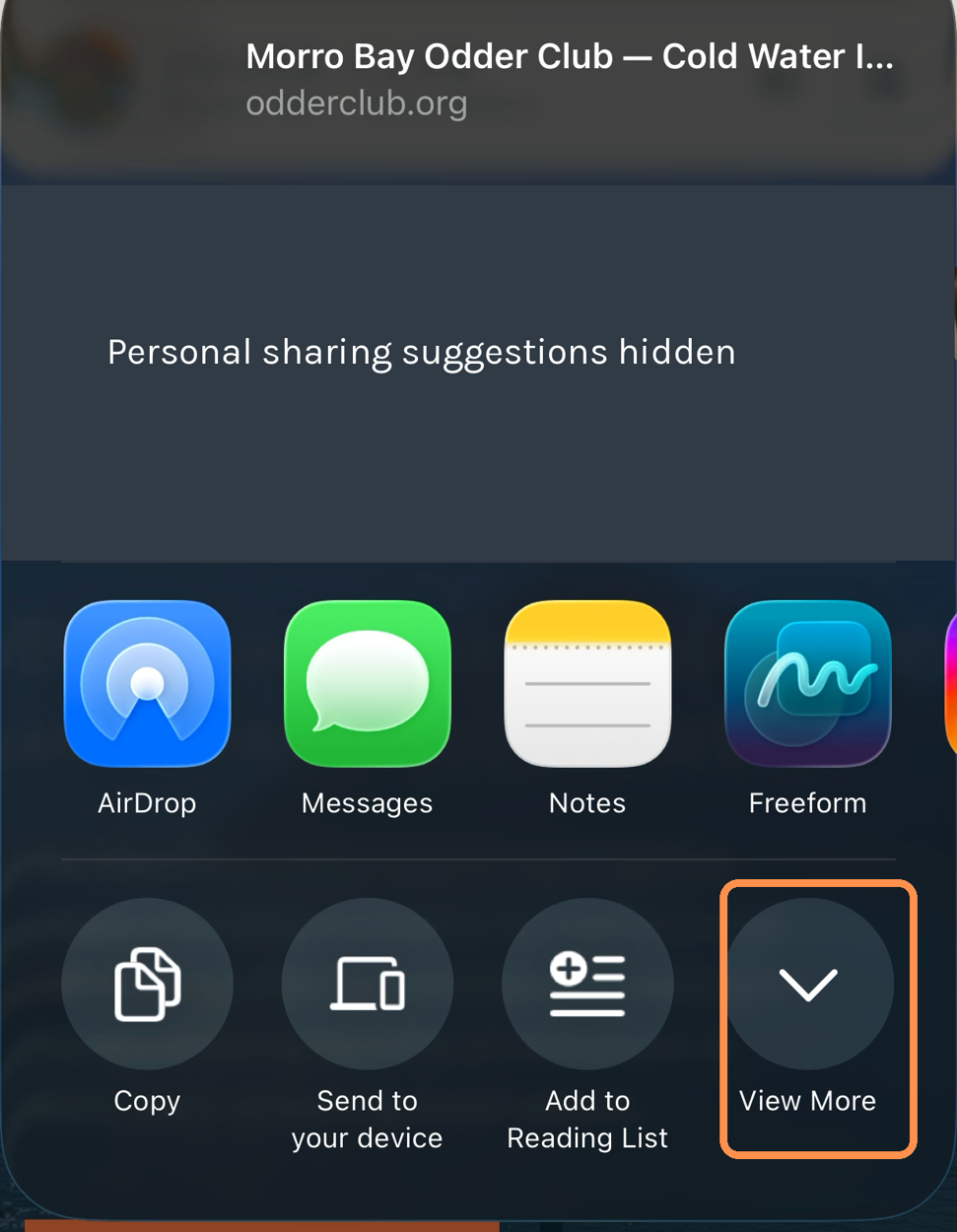
Scroll past the sharing options, then tap Add to Home Screen.
Leave Open as Web App on, tap Add at the top, then open your new icon.
Recommended for every member
Fast access to guided breathwork, calm breathing, the cold-dip countdown, safety information, dips, waivers, reminders, and photos.
Open Member App to add it
The public website for club information, the calendar, gallery, vlog, shop, and news. Members do not need to install this one too.

For Russ and full administrators: calendar, inbox, tasks, shop, website, and club records.
Open Operations to add it
For Russ and approved helpers: check waivers, record attendance, and help a new visitor sign or join. Forms can wait safely on the phone when service drops.
Open Check-In to add itOpen the app you want, tap its Add to phone button, and follow the three steps. Then return here for another app. Your phone may ask you to sign in once inside each separately installed icon.
Before going to the beach
1. Add the Member App
Install it from the member dashboard while you have a good connection.
2. Save the recording
Open Breathwork and tap Save on this phone. Wait for Ready without internet.
3. Open it before leaving
Open Breathwork while you still have service, then keep the app open on the way to the beach. This is the most reliable way to use it with no signal.
Once Breathwork is open and the recording says Ready without internet, the recording, breathing guide, countdown, and safety information keep working if reception drops. Signing in, live dip updates, RSVPs, uploads, and messages still need internet.